-
How to Pay for My Orders?
You may feel confused about the payment procedure on the platform when your orders are synced, imported, or created. Please find the detailed process below for your guidance. The general steps: 1. Store Orders > Imported > Orders > Select the orders and Add to Orders Picking; 2. Click "Orders Picking" or enter the Orders Picking > Select the orders > Submit; 3. Order Confirmation > Submit; 4. Select the payment method > Pay. Note: 1. Order Confirmation: Here is the detailed information about the order, including the products/packaging deducted and all the cost. 2. Payable Amount: The total amount that you need to pay. 3. Inventory Deduction: It refers to the products and packages that you have purchased before and stocked in our warehouses (For more details, please find: How to Purchase Private Inventory? ). If you have stock, you can click "Deduction" to deduct the products you want (Please also find: How to Use Private Inventory?). 4. If you choose "Pay", it refers to that you will pay for the orders directly without deduction. There are currently 11 options while combined payment with CJ Wallet and another payment method is available. Please also find: What Payment Methods Are Available Now? If you cancel the payment halfway or go back to the previous pages during the process, you can find the orders in Orders > Store Orders > All/Awaiting Payment to pay. Please pay attention to the time for Inventory Reserved. It means that we will reserve the inventory for you for 24 hours after you cancel the payment. Contact Us -
How Much Do I Need to Pay to Declare with an IOSS ID?
Before you import orders of EU countries to CJ, you would need to complete the Declaration settings > IOSS settings on our platform. Generally, you should select to declare with CJ's IOSS ID or your own IOSS ID, declare with store order amount or CJ order amount. However, some customers may feel confused about the difference between them. One of the differences is about the charging method. In the following article, we will explain what's the difference between different charging methods. 1. CJ order amount vs. Store order amount; 2. CJ's IOSS ID vs. Your own IOSS ID. CJ Order Amount vs. Store Order Amount a. You can use CJ order amount if you don't have your own IOSS number. 2. With the store order amount, the VAT will be charged on the basis of your store price. CJ's IOSS ID vs. Your Own IOSS ID a. If you choose to declare with your own IOSS ID, there would be no service fee except for product fee, and VAT. Moreover, the VAT would not be collected by CJ. b. If you choose to declare with CJ's IOSS ID, there would be a service fee (VAT*3%). For example, if the VAT of your order is $5, the service fee would be $0.15=$5*3%. Note: After setting a declaration with CJ's IOSS ID, you could view the VAT as well as the service fee while making payments, and the fees can also be viewed in your invoice. Also, CJ's IOSS ID cannot be chosen if your order's total product value is over €150. With any confusion, please feel free to contact us. -
What Payment Methods Are Available Now?
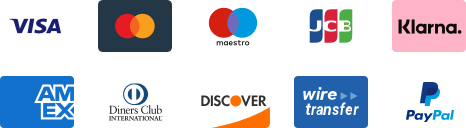
The payment methods below are what CJ would accept currently. Now, we'll give you an introduction to them. PayPal; Wire Transfer (T/T); Pay with Card; Pay with CJ Wallet and combined payment; Payoneer; WeChat Pay; iDEAL; Pix; Klarna PayPal Paypal allows you to make payments based on your Paypal deposit, credit card, and bank account. You can click "Continue with PayPal" to proceed with the payment. When you use PayPal to top up, you may need to contact our agent to get a top-up bank account. Wire Transfer (T/T) Wire transfer is the transfer of funds done electronically across the network of banks or transfer agencies around the world. Note: a. You could view our bank account information when you click the "Pay" button. b. Our payment must be received in the total amount. Please also take into account the additional transfer fee. c. We would not process until we confirm having received your payment. Please contact your agent if it's still on pending status after 5 days. d. It only takes 2 or 3 days for the transfer to arrive if your bank has a direct correspondence with our bank. Pay with Credit Card It's easy to set up an account that is used for payment or receipt. To complete the payment, you're required to fill in: a. Your email address; b. Card number; c. Date; d. CVC code; e. Country; CJ Wallet CJ Wallet is the amount in your CJ account. You can top up the wallet with Payoneer, Wire Transfer and gift card, and we would provide up to a 2% bonus for your deposit. By the way, when the balance is insufficient, you can pay with CJ wallet and another payment method together. Payoneer It's the most recommended payment method in CJ. You can link your Payoneer to CJ so that you don't need to log in for each payment. While making the payment, it will show your account balance, and please make sure the balance is more than the order amount. Note: For a new user of Payoneer, you can receive a bonus of $50. Please follow the 2 steps below. Step 1: Your new Payoneer account is signed up via the link here. http://tracking.payoneer.com/SH2bh Step 2: The new Payoneer account receives $1000 in total. When Step 2 is done, the bonus will be given by Paynoeer immediately. Enjoy using Payoneer. WeChat Pay For Chinese users' convenience, we accept WeChat Pay as a payment method. Please contact your agent to get permission. Note: The QR code expires after 15 minutes, so please pay on time. iDEAL iDEAL is an e-commerce payment system used in the Netherlands, based on online banking. You need to select a bank and proceed. Klarna Klarna offers options for delayed payments and installment plans, helping customers manage their finances more easily. This payment method is currently available on the CJ platform for six countries: Austria, France, Germany, the Netherlands, Sweden, and the UK. https://www.klarna.com That's all about available payment methods at present and we'll keep updating all the time. Contact Us Additional CJ support context for What Payment Methods Are Available Now? Q: Where should sellers check CJ Wallet and billing status? A: Add a card or payment method before placing orders so payment does not delay fulfillment. In CJ, go to My CJ > Payment Method and add the supported card or payment option, then use it directly for order payment or together with CJ Wallet. Keeping a valid payment method on file helps orders move from payment to processing faster. -
How to Place a Manual Dropshipping Order on CJ?
CJ develops a feature that enables CJ customers to create orders on our platform with ease. Here are the general steps. 1. Go to Store Orders > Imported > Orders > Click "Create orders" icon on the top right; 2. Select products in SKU List/All Products; 3. Fill in the shipping information; 4. Add to cart and pay. Note: 1. If the selected products on the different warehouses (eg. China warehouse and US warehouse), then the system will divide them. Also, if you enter the shipping information for New Order 1, you can click the duplicate icon (Beside New Order 2) to copy it for New Order 2. 2. For orders shipping to EU countries, you need to set up IOSS option. For more about IOSS, please refer to this article. Add to Orders Picking and pay. The order created will show up under "Store Orders > Imported > Orders". You just need to add it to the cart and pay as the normal steps. Contact Us Additional CJ support context for How to Place a Manual Dropshipping Order on CJ? Q: What can sellers do when automatic store integration is unavailable? A: When automatic store integration or order sync is unavailable, CJ orders can still be created manually or imported with Excel or CSV. The order file should keep SKU, variant, quantity, customer address, and shipping method consistent with the original store order. This provides a fallback fulfillment path while the store connection or automatic sync issue is checked separately. -
How to Purchase Private Inventory?
Private inventory will be a good choice if you want to shorten processing time and prevent products from stock shortage. After purchasing, the stock is only available to you, and you can use this inventory to deduct product prices in your next order. Here are the general steps: 1. Find your ideal product on the home page; 2. Click 'Preorder Inventory'; 3. Select a warehouse; 4. Submit your order and pay; 5. Check the inventory status. Regular products Packaging products The same process goes for POD products. Notes: 1. It will have an inbound warehouse and/or shipping cost to ship the products from the factory to our warehouse. Our staff will check the product quality and arrange the warehousing. *The inbound cost will be updated in your bill so you can pay it before the due date. 2. When you choose CJ's warehouses in China or in the US, you can pay for the order directly. When you choose our cooperated overseas warehouses, we will make a review on your request and it may take 12-24 hours. With any uncertainties, please contact us. Additional CJ support context for How to Purchase Private Inventory? Q: What should sellers verify before placing or syncing CJ orders? A: Before placing or syncing orders, verify SKU inventory, warehouse location, and product availability. Private inventory, deposit inventory, and warehouse stock can affect whether an order can be fulfilled quickly from the expected warehouse. Checking inventory before payment helps avoid stockouts, fulfillment delays, or orders that need warehouse adjustment. -
Declaration with IOSS
From July 1, 2021, customs regulations have changed and any shipment from a country outside the European Union is now subject to VAT and customs duties. Find out more details here: ALL YOU NEED TO KNOW ABOUT THE IMPORT ONE-STOP SHOP (IOSS) To facilitate the delivery process of parcels to EU countries, CJ has enabled IOSS Declaration options in Profile > IOSS Setting including: 1. Declaration Amount; 2. Declaration Options: Declaration with no IOSS; Declaration with my own IOSS; Declaration with CJ's IOSS. 3. Sync IOSS Setting. 1. Declaration Amount; You may either declare by Store Order Amount or CJ Order Amount for different countries by clicking "Action > Edit Countries" Store Order Amount: Your store order amount (if available) will be declared, otherwise, CJ order amount will be declared. The recipient will be required to pay VAT for orders valued above €150. CJ Order Amount: CJ order amount will be declared. The recipient will be required to pay VAT for orders valued above €150. 2. Declaration Options. a. Declaration with no IOSS. The recipient will be required to pay VAT to complete customs clearance, otherwise, the parcel will be detained or destructed by the customs. This option is recommended for CJ users who have a low margin on their product prices. b. Declaration with my own IOSS. If you have your own IOSS ID, you can link it to your CJ account in Profile > IOSS Setting > Add IOSS. We highly recommend you declare with your own IOSS which is valid and is linked to the destination country in the EU. *VAT upon declaration will be settled with your IOSS ID, in this case, please take potential VAT required into consideration regarding pricing in your store. c. Declaration with CJ's IOSS. If you are not from an EU country or simply don't have your own IOSS, you can declare with CJ's IOSS ID after editing the countries under IOSS Option > Declare with CJ's IOSS. CJ's IOSS ID will not be applicable for orders valued above €150. *For regular orders, you will need to pay the VAT and IOSS handling fee (VAT*3%) if you declare with CJ’s IOSS ID when you submit orders on CJ. You can also view the order details below after payment. 3. Sync IOSS Setting. When you place orders manually or import orders by Excel and don't fill in the IOSS number, it will be applied as your setting in My CJ > Profile. If you want to change it, you can change the setting in Profile and click "IOSS Setting" to make it. Please do not hesitate to consult an online agent in the chatroom if you have any questions. -
How to Purchase Supplier Products in CJ Global Warehouses?
As CJ keeps expanding our business scale, an increasing number of partners have joined us to help customers at home and abroad grow business from scratch, some of which will participate as our suppliers. As part of the program, they import their products, aka, supplier products, on our platform at a competitive price for sale. Generally speaking, purchasing supplier products can curtail delivery time to a great extent with free shipping service. This tutorial will teach you how to purchase supplier products in overseas warehouses. Here are the general steps: Step 1. Find the product you want. Step 2. Confirm the quantity and variants before clicking Add to Cart. Step 3. Find products in your cart and click Submit. Step 4. Choose the address and the shipping method. Then pay for them. When you pay for the order successfully, you could check its status in Sample Orders/Wholesale Orders/Inventory Orders. With any uncertainties, please turn to our online agent. -
What is IOSS and How to Register?
To provide convenience to cross-border online sales and the importation of low-value consignments, the new VAT e-commerce rules will come into force on 1st July 2021 in the EU. Along with the cancellation of the exemption at the importation of small consignments of a value up to EUR 22, all goods imported in the EU will be subject to VAT. To simplify the declaration and payment of VAT, the Import One Stop Shop (IOSS) has been published. In this article, we will talk about: 1. What is IOSS (Import One Stop Shop)? 2. What are the advantages of IOSS? 3. Which supplies of goods do the IOSS cover? 4. How to register for IOSS? 1. What is IOSS (Import One Stop Shop)? IOSS, also known as “import one-stop shop”, is a new system of new VAT declaration and payment especially for cross-border online sales and importation of goods to the EU. It allows suppliers and electronic interfaces selling imported goods to buyers in the EU to collect, declare and pay the VAT to the tax authorities, instead of making the buyer pay the VAT at the moment the goods are imported into the EU as it was previously the case (for products over 22 EUR). 2. What are the advantages of IOSS? The IOSS facilitates the collection, declaration, and payment of VAT for sellers that are making distance sales of imported goods to buyers in the EU; The IOSS also makes the process easier for the buyer, who is only charged at the time of purchase, and therefore does not face any surprise fees when the goods are delivered; If the seller is not registered in the IOSS, the buyer has to pay the VAT and usually a customs clearance fee charged by the transporter. 3. Which supplies of goods do the IOSS cover? Dispatched or transported from outside of the EU at the time they are sold; Dispatched or transported in consignments with a value not exceeding a total of EUR 150 (low-value goods) even if the order contains more than one item; Not subject to excise duties (typically applied to alcohol or tobacco products). Note: For the sellers who use third-party platforms like eBay/Amazon, etc., the platform will register for IOSS; For independent sites or other electronic interfaces, the sellers need to register on their own. 4. How to register for IOSS? From 1 April 2021, a business can be registered on the IOSS portal of any EU Member State. If businesses are not based in the EU, they will normally need to appoint an EU-established intermediary to fulfill their VAT obligations under IOSS. Note: Important information above all refers to the announcement from ec.europa.eu, kindly find more details about IOSS there. With any uncertainties about your tax obligation, please kindly contact the professional tax consultant. Find details about how to make declaration with IOSS on CJ. Contact us if you need any assistance, CJ will be here to support you. -
How to Purchase Deposit Inventory?
Some dropshippers might not have enough funds to stock their private inventory in the CJ warehouse to shorten the processing time. As a result, we provide an option to pay a 30% deposit for inventory and speed up the order processing. Note: To place a deposit inventory order, please make sure: 1. The quantity is no less than 10 pcs for a variant;2. The total order amount is no less than $100, while the deposit amount is no less than $30. Here are the steps: 1. Find the product and select “Preorder Inventory”. 2. Select the transaction type as “30% Deposit” and select the warehouse. Note: You have to talk to your agent about how to select the warehouse before placing the deposit inventory order, otherwise the inventory may not be deducted. 3. Check the order status in Deposit Inventory. You can find the deposit inventory by Products > My Inventory > Deposit Inventory and check how they are used or occupied. Tips:1. Deposit=Product cost*30% (in China warehouses) / (Product cost+first mile shipping cost)*30% (in overseas warehouses) 2. It can be deducted for dropshipping orders on the condition that the inventory order status is completed and that there are products available in the public inventory. 3. You’re required to pay for the product and shipping when submitting dropshipping orders. 4. You cannot open a dispute for a deposit inventory order. 5. The deposit will be returned to your payment account after all deducted dropshipping orders are dispatched. With any uncertainties, please feel free to contact your agent for help. Additional CJ support context for How to Purchase Deposit Inventory? Q: What should sellers verify before placing or syncing CJ orders? A: Before placing or syncing orders, verify SKU inventory, warehouse location, and product availability. Private inventory, deposit inventory, and warehouse stock can affect whether an order can be fulfilled quickly from the expected warehouse. Checking inventory before payment helps avoid stockouts, fulfillment delays, or orders that need warehouse adjustment. -
How to Set up Automatic Dropshipping Orders?
When you registered your CJ account, you may wonder how to sync orders automatically. Here are some directions for you to achieve that. After these steps, the CJ team will automatically handle the orders in your shop, ship for you, and sync the tracking numbers to your customers. Simple Directions: 1. Authorize stores: Authorization; 2. Connect products: a. Automatic connection; b. Sourcing request; c. Listing; 3. Confirm and Pay. Detailed Directions: 1. Authorize your stores. Please sign in and go to Authorization > Add store and the store status should be activated when everything is well done. 2. There are three types of products that you can connect and order. a. The existing products in your store and CJ. When you want CJ to become your supplier, you need to go to Products > Store Products > Unconnected to connect your products with ours. b. Products do not exist on CJ. If you didn't find the same product, you can post a sourcing request by clicking Service > Sourcing > Post Sourcing Request. There are two sourcing types: your store existing products and individual products by product links and images. You need to select one type and submit a request to us. c. Products do not exist in your store and CJ. If you wanna add some new products from CJ to your store, click the "List" button on the product page. PS: The total dropshipping cost of the product is equal to the product price plus its shipping cost. 3. Check the orders imported from your store in Orders > Store Orders > Imported >Orders. Then you can choose the orders to be fulfilled by CJ. Please note that you need to click "Sync Store Orders" to sync orders from your store to the CJ platform, during which you may import orders based on store names and times. After your customers made orders, all you need to do is to add the order to the cart and pay. CJ team will do all the rest for you. If you have any questions, don't hesitate to contact us. You're welcome to join our Facebook group for help.
${item.text}
${item.title}
${item.afterBtn.text}